Managing your team is easier than ever with WESIGNDOC. Whether you handle documents for a company, agency, or internal department, adding sub users allows you to collaborate smoothly, assign tasks, and control who can prepare or send documents.
Here’s a simple step-by-step guide to help you add a sub user to your WESIGNDOC account.
Step-by-Step Guide to Adding a Sub User
1. Login to Your Primary/Main Account
Start by signing in to your main WESIGNDOC account on https://wesign.com/. Only the primary user has the permission to create and manage sub users.
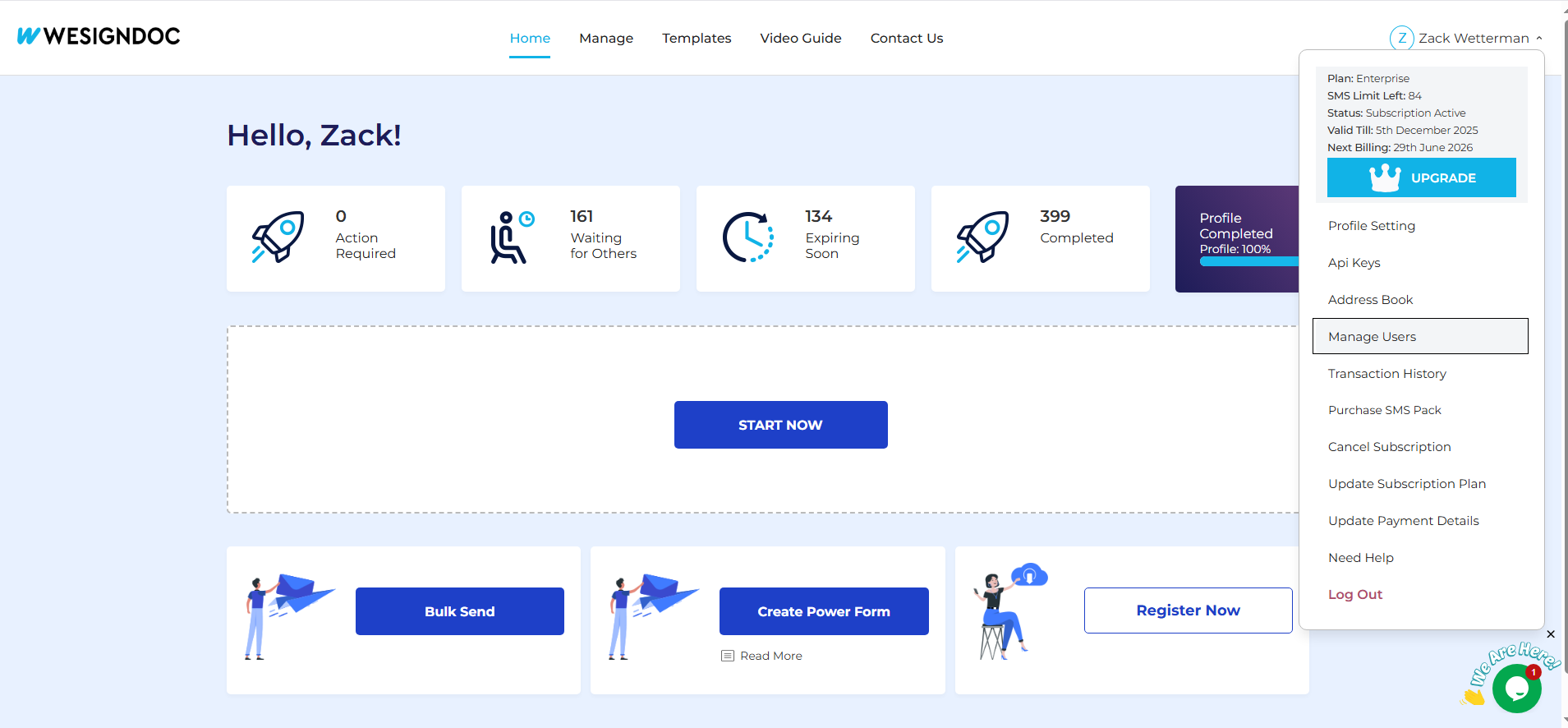
2. Hover Over Your Name
On the dashboard, go to the top-left corner of the screen.
Move your mouse cursor over your name to reveal the account options.
3. Select “Manage Users”
From the dropdown, click on “Manage Users.”
This is where you can add, edit, or remove sub users linked to your account.
4. Add a New User
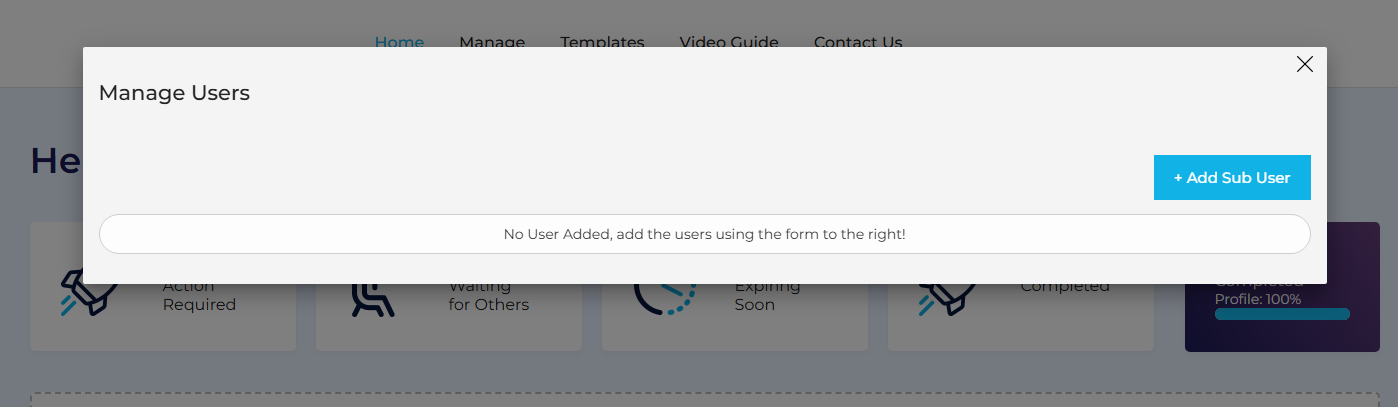
A pop-up window will appear. Here’s what to do next:
-
Click on “Add User”
-
Enter the name, email address, and password for the new sub user
-
Once all details are filled in, click “Add”
The new user will now be successfully added to your account.

5. Email Verification Sent to Sub User
After adding the user, a verification email is sent to the sub user’s registered email address when u send it.
Make sure the sub user checks their inbox (and possibly the spam folder).
6. Verify & Login as Sub User
Once the email is verified, the sub user can log in directly at https://wesign.com/ using the credentials provided by the primary account holder.
They can now begin using WESIGNDOC with the permissions you’ve granted.
Why Add Sub Users?
Adding sub users helps you:
-
Assign roles and responsibilities
-
Improve workflow efficiency
-
Enable team-wide access to documents
-
Track activity with better control
-
Maintain account security
It’s perfect for teams in real estate, banking, legal, insurance, healthcare, HR, sales, and more.

 Products
 eSignature Send, sign, and track documents
 Mobile App Sign, send, and manage documents from anywhere
 Smart Document Templates Build, reuse, and standardize documents
 Mass Document Sending (Bulk Send) Send forms to thousands in one go
 Web Forms Share links to collect signed forms
 Secure SMS Delivery Send sign links directly via SMS
 Robust API Integration Automate sending and tracking flows
 Developer SDK Toolkits Add eSign features to any product