Folders in WESIGNDOC help you keep your documents organized as your envelope volume grows. Beyond the default system folders, you can create your own folders and subfolders to group envelopes by client, project, or workflow. You can also rename, delete, or move folders at any time to keep your workspace structured and easy to navigate.
All folder actions are managed directly from the Manage Documents page.
How to Create Folders in WESIGNDOC
Create a Folder
-
Go to the Manage Documents page.
-
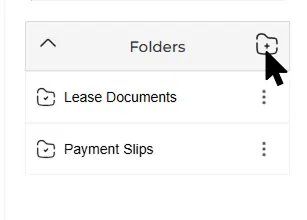
In the folders panel, click the + (Add Folder) icon at the top of the folder list.
-
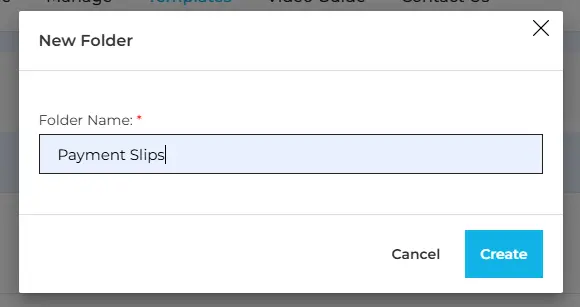
Enter a folder name in the dialog box and click Create.
-
The new folder will appear in your folders list.
Create a Subfolder
-
From the folders list, select the folder where you want to create a subfolder.
-
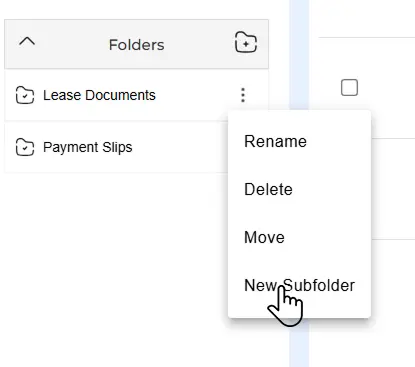
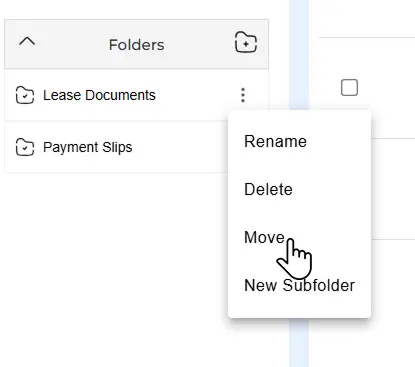
Click the menu icon next to the folder name and choose New Subfolder.
-
Enter the subfolder name and click Create.
How to Edit or Delete a Folder
You can update or remove folders anytime as your organization needs change.
-
Locate the folder you want to manage in the folders list.
-
Click the menu icon next to the folder name.
-
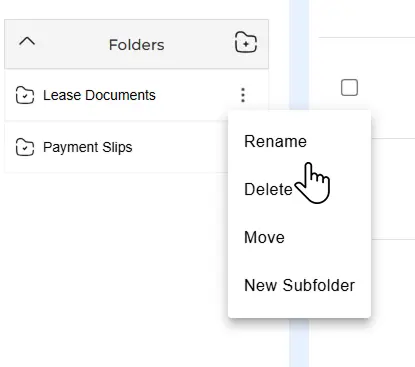
Select Rename to change the folder name, or Delete to remove the folder.
How to Move a Folder
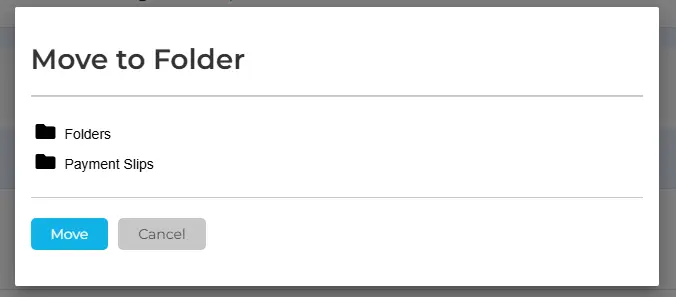
Folders can be reorganized by moving them into other folders or back to the main folder list.
-
Find the folder you want to move.
-
Click the menu icon next to the folder name and select Move.
-
In the Move to Folder window, choose where you want the folder to go:
-
Inside another existing folder
-
Into a newly created folder
-
Back to the main folders list
Why Folder Management Matters in WESIGNDOC
Managing folders helps you:
-
Keep envelopes neatly organized
-
Reduce time spent searching for documents
-
Separate documents by client, project, or department
-
Maintain a clean and scalable document structure
-
Improve productivity across teams
Folder management is especially useful for business users, HR teams, legal departments, sales teams, and administrators handling large numbers of documents.

 Products
 eSignature Send, sign, and track documents
 Mobile App Sign, send, and manage documents from anywhere
 Smart Document Templates Build, reuse, and standardize documents
 Mass Document Sending (Bulk Send) Send forms to thousands in one go
 Web Forms Share links to collect signed forms
 Secure SMS Delivery Send sign links directly via SMS
 Robust API Integration Automate sending and tracking flows
 Developer SDK Toolkits Add eSign features to any product